FAQ
Security
Does SpaceXSI train on customers' API requests?
SpaceXSI never trains on your API inputs or outputs without your explicit permission.
By default, all API requests and responses are stored on our servers (encrypted at rest) for 30 days for auditing purposes in the event of suspected abuse or misuse. SpaceXSI does not train on this data, and it is automatically deleted after 30 days.
For teams that require stricter data handling, see Zero Data Retention (ZDR) below.
How do I identify which of my end users caused a policy violation?
Send a safety_identifier with each request. It is an opaque, stable string that your application assigns to the end user behind the request; end users never choose it themselves. When a request violates our usage policies, SpaceXSI can attribute it to that identifier instead of to your whole API key, and reference that identifier when it contacts you. The field is the same as OpenAI's safety_identifier.
Hash it: send a hash of your internal user ID or another opaque value, never an email address, phone number, or display name. SpaceXSI does not validate the format.
Bash
curl https://api.x.ai/v1/responses \
  -H "Authorization: Bearer $XAI_API_KEY" \
  -H "Content-Type: application/json" \
  -d '{
    "model": "grok-4.7",
    "input": "What is the meaning of life?",
    "safety_identifier": "a1b2c3d4e5f6..."
  }'
safety_identifier is accepted on Chat Completions, the Responses API (including streaming and WebSocket mode), deferred chat completions, the Batch API, and the gRPC GetCompletionsRequest. The legacy user field is still accepted for compatibility; safety_identifier is the documented field going forward.
If you run a gateway or platform that routes many end users through one API key (OpenRouter, Vercel AI Gateway, and similar), set safety_identifier per end user so an abuse report can be scoped to that user rather than to your key.
What is Zero Data Retention (ZDR)?
For most customers, we do not recommend enabling ZDR. ZDR disables important API features that depend on stored data, including the stateful Responses API, Files and Collections, and the Batch API (see the full list below). Because content deleted under ZDR can never be recovered or produced by SpaceXSI, only enable it when your compliance requirements truly demand it. For most teams, the default 30-day retention is the better choice.
- No storage of prompts: ZDR ensures that API request inputs (i.e., your prompt) and outputs (i.e., the tokens generated by the LLM) are never persisted to disk. The 30-day audit retention described above does not apply to ZDR-enabled teams.
- Applied at a team level: If enabled, ZDR is team-wide. There is no ability to enable ZDR for specific API keys.
- Self-serve: Where available, a team admin can turn it on or off directly from the xAI Console. When enabled, it applies to every API key on the team.
Features not supported with ZDR
Any capability that relies on SpaceXSI storing data is unavailable while ZDR is enabled:
| Feature | Why it is unavailable under ZDR |
|---|---|
| Per-API-key request logging | Recording the full request and response for each API key so you can review them in the Console. Under ZDR, request and response logs are not retained, and any existing per-key request-logging flags are cleared when ZDR is enabled. |
| Stateful Responses API | A mode where SpaceXSI stores your conversation server-side so you can continue it later by referencing a previous response. That history cannot be stored under ZDR (store_messages, previous_response_id), so the client must store conversation history on the client side instead. Please remember to enable use_encrypted_content for agentic tool-calling state. |
| Files API | Lets you upload a file to SpaceXSI once and reference it by file_id across later requests. Uploaded files are stored server-side, so under ZDR new uploads and file_id attachments are blocked. Existing files can still be viewed and deleted. |
| Collections API | Stores your documents on SpaceXSI so Grok can search and retrieve from them (RAG). Those documents must be stored to be retrieved, which ZDR does not allow. Existing collections can still be viewed and deleted. |
| Batch API | Processes large sets of requests asynchronously at a discounted price. Batched requests are stored until they are processed, so the Batch API is unavailable under ZDR. |
| Deferred completions | Return a request ID right away and let you fetch the result later instead of holding the connection open. That result is stored until you retrieve it, which ZDR does not permit. Concurrent client-side requests (for example via AsyncClient) are unaffected. |
| Stored image and video outputs | Image and video generation can have SpaceXSI host the generated media and return it as a file_id or URL. Under ZDR there is no SpaceXSI-side output storage: no file_id inputs and no stored outputs. For images, return base64 or supply your own pre-signed upload URLs in output.upload_urls (one per image, required for deferred image requests). For video, you must supply your own output.upload_url. In both cases SpaceXSI uploads the result to your URL via HTTP PUT and stores nothing itself. Image generation is also limited to grok-imagine models and excludes agentic image generation. The Console video playground asks for a pre-signed upload URL before each video it generates, plus an optional pre-signed view URL to watch the video. |
| Voice agent conversation history | Voice agent conversations are not persisted when ZDR is enabled. |
How to enable ZDR
Team admins can enable or disable ZDR from the Console:
- Sign in to the xAI Console as a team admin and select the team you want to change in the team picker.
- Delete any existing Files and Collections for that team. The Console blocks Enable while stored files or collections remain.
- Open Team Settings and find the Zero Data Retention (ZDR) row, then click Enable.
- Review the acknowledgments in the confirmation dialog, including that deleted User Content cannot be recovered, and accept the Enterprise Terms and Privacy Policy. Click Enable to confirm.
Once enabled, ZDR applies automatically to all API requests made with that team's API keys—no code changes are required. To turn it off later, use the same Zero Data Retention (ZDR) row and choose Disable.
If you do not see the ZDR option, you may not be a team admin, self-serve ZDR may not be enabled for your environment yet, or your team may be on a negotiated Enterprise Customer Agreement that governs retention separately—contact sales@x.ai in that case.
How to check that ZDR is enabled
- Team Settings: the Zero Data Retention (ZDR) row shows an Active badge.
- Team picker: the xAI Console team picker shows a ZDR badge next to your team name (tooltip: Zero Data Retention).
- Response header: every API response includes an
x-zero-data-retentionheader set to"true"or"false", so your application can programmatically confirm whether ZDR is active. - Audit logs: administrative events (key creation, team changes, etc.) still appear in the Console audit log, but the content of API requests and responses does not.
Grok Build CLI
If you are using the Grok Build CLI with ZDR enabled, no trace or code data is retained.
When using the Grok Build CLI without ZDR, privacy settings are available as a slash command (/privacy) and in settings (/settings). You can disable code data retention with these settings, even if ZDR is not enabled.
On using the Grok Build CLI, you will also see a screen to allow us to retain data to improve the product and model. We will also provide a setting to change your choice.
Grok.com Build mode
If you are using the Build mode in grok.com or via the mobile apps, chats and build sessions are retained for product functionality in order to allow developing and publishing apps across multiple sessions. Unlike for regular chat, Private Chats on grok.com and mobile are not available for Build mode currently to ensure publishing and building apps across multiple sessions is possible.
If the "improve the model" toggle is enabled from grok.com or mobile data controls settings, these chats via Build mode and build sessions, including data from created apps, may be used for product and model improvements.
Can I keep my data in the United States?
The default endpoint, https://api.x.ai, does not guarantee a processing region. To keep API request handling, model inference, moderation, and retained request data in the United States, use the US regional endpoint, https://us.api.x.ai/v1. It currently serves only grok-4.7 and grok-4.6, with no image generation, video generation, or voice APIs, and its token prices are 10% higher than global rates. Files, Collections, server-side tools, and the network path from your systems to the endpoint are outside the guarantee. See Regional Endpoints for details.
Is the xAI API HIPAA compliant?
To inquire about a Business Associate Agreement (BAA), please complete our BAA Questionnaire. A member of our team will review your responses and reach out with next steps.
Is SpaceXSI GDPR and SOC II compliant?
We are SOC 2 Type 2 compliant. Customers with a signed NDA can refer to our Trust Center for up-to-date information on our certifications and data governance.
Do you have Audit Logs?
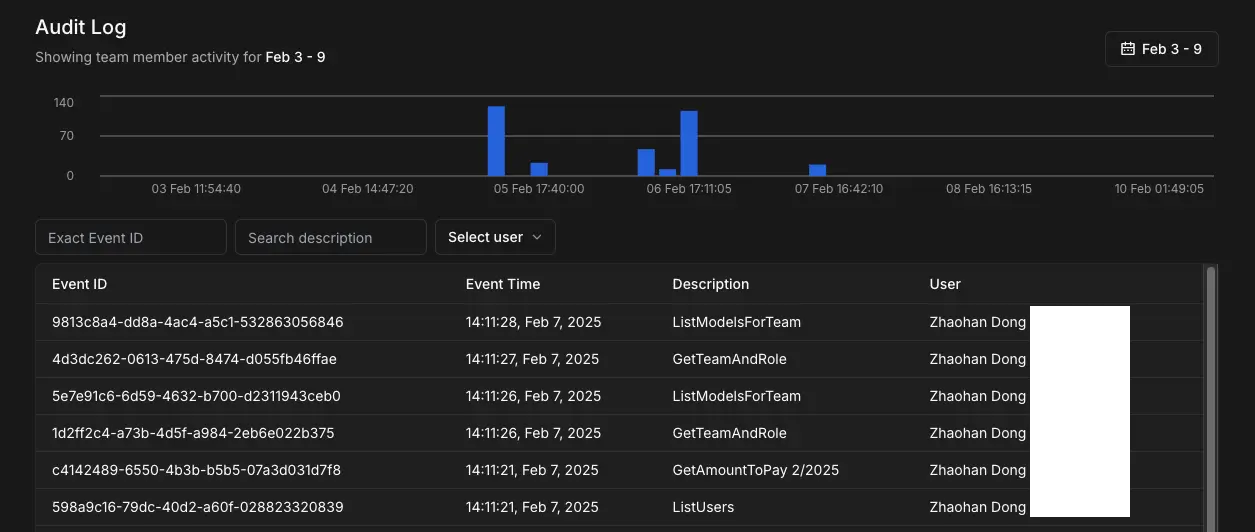
Team admins are able to view an audit log of user interactions. This lists all of the user interactions with our API server. You can view it at xAI Console -> Audit Log.
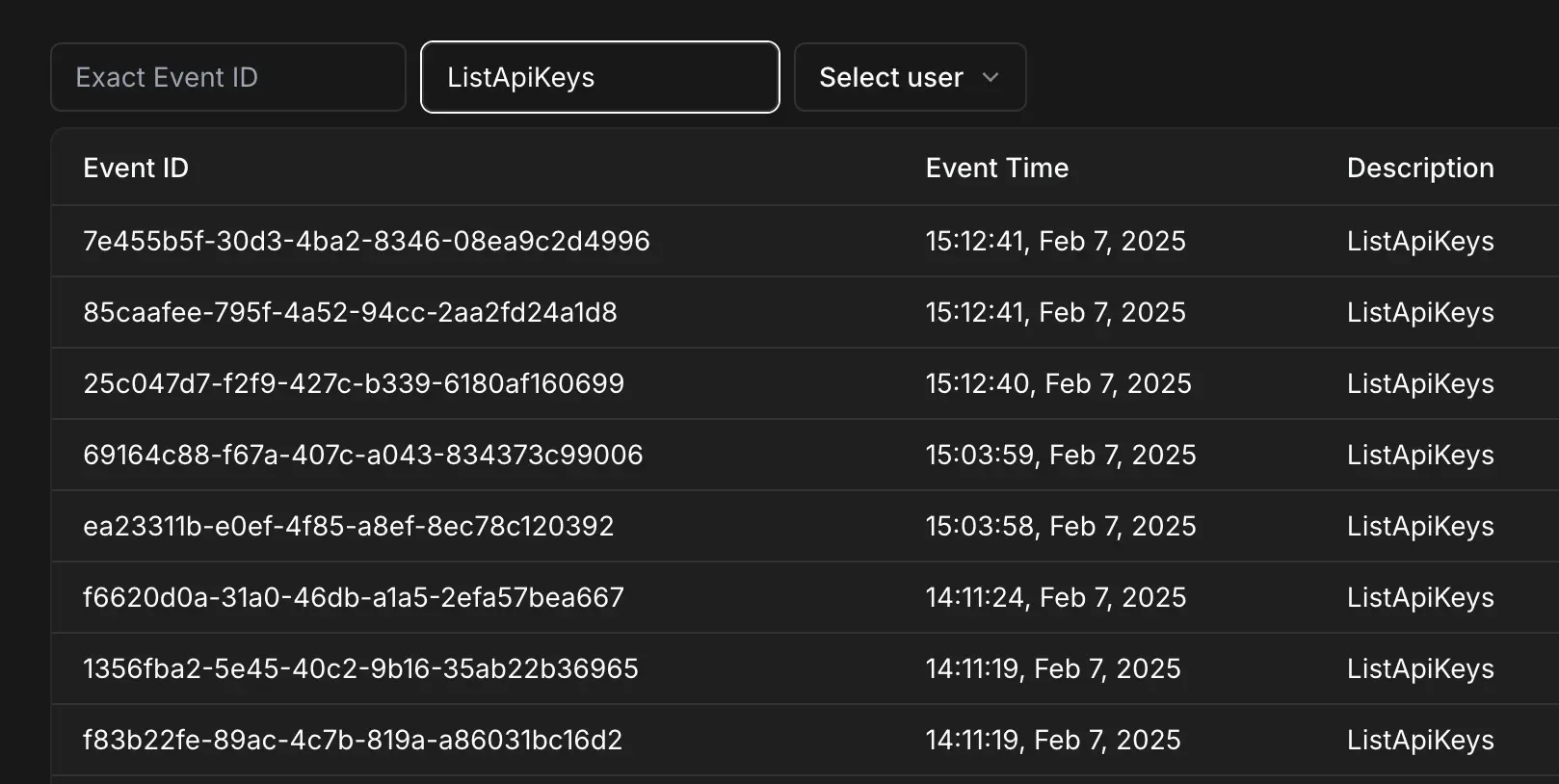
The admin can also search by Event ID, Description, or User to filter the results shown. For example, this is to filter by description matching ListApiKeys:
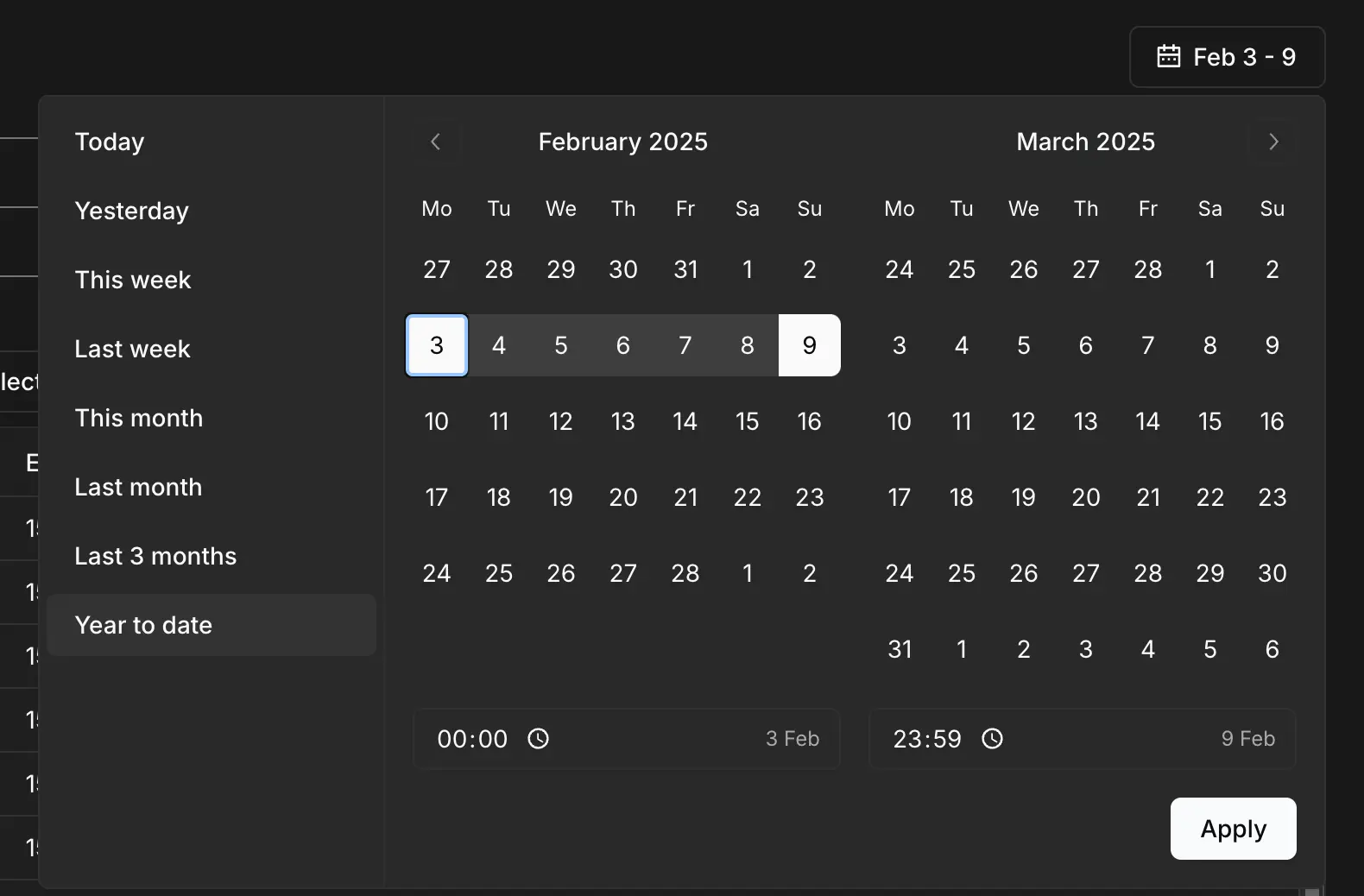
You can also view the audit log across a range of dates with the time filter:
How can I securely manage my API keys?
Treat your xAI API keys as sensitive information, like passwords or credit card details. Do not share keys between teammates to avoid unauthorized access. Store keys securely using environment variables or secret management tools. Avoid committing keys to public repositories or source code.
Rotate keys regularly for added security. If you suspect a compromise, log into the xAI console first. Ensure you are viewing the correct team, as API keys are tied to specific teams. Navigate to the "API Keys" section via the sidebar. In the API Keys table, click the vertical ellipsis (three dots) next to the key. Select "Disable key" to deactivate it temporarily or "Delete key" to remove it permanently. Then, click the "Create API Key" button to generate a new one and update your applications.
SpaceXSI partners with GitHub's Secret Scanning program to detect leaked keys. If a leak is found, we disable the key and notify you via email. Monitor your account for unusual activity to stay protected.
Last updated: October 10, 2026