FAQ
FAQ - Grok Website / Apps
While the documentation is mainly meant for our API users, this page collects the most common questions about our consumer-facing Grok website and apps (grok.com, iOS, and Android).
Billing & Subscriptions
How do I cancel or manage my SuperGrok subscription?
Where you manage it depends on where you subscribed:
- Web (grok.com): Visit grok.com/?_s=billing while logged in to manage your billing directly from the website (change plan, update payment, or cancel). If the Manage Subscription button doesn't open, ad-blockers or other apps/extensions can block it — try an incognito window or a different browser. If you still can't complete it, support can escalate the cancellation to the billing team.
- Apple App Store (iOS): Apple handles the transaction. Cancel · Refund.
- Google Play (Android): Cancel via Google Play. Refunds are handled by SpaceXSI — use the xAI Refund Request form.
How do I unsubscribe?
If you have subscribed to SuperGrok, you can go to https://grok.com -> Settings -> Billing to manage your subscription (purchased from Grok Website), Request a refund for app (purchased from Apple App Store), or Cancel, pause or change a subscription on Google Play (purchased from Google Play).
If you have subscribed to X Premium, X (not SpaceXSI) would be responsible for processing refund where required by law. You can submit a refund request from X. See more details regarding X Premium subscriptions on X Help Center.
How do I update my credit card or payment method?
Manage your billing on the web at grok.com/?_s=billing (logged in). If the Manage Subscription button doesn't open the billing portal, the usual cause is an ad-blocker or another app/extension blocking it — try an incognito window or a different browser. If you still can't reach payment options, contact support to update the card.
Can I get a refund for my Grok or SuperGrok subscription?
Refunds depend on where you originally purchased the subscription:
- Web (grok.com) or Google Play: handled by SpaceXSI. Submit your refund request using the xAI Refund Request form (sign in with the account used for the subscription). Our team will review the request. Approved refunds are typically issued to your original payment method within 5–10 business days.
- Apple App Store: Apple handles all refunds for purchases made through the App Store. Please request your refund directly through Apple.
Are API credits refundable?
No — xAI API credits are non-refundable.
I got a large invoice I don't recognize — is it API usage?
Not necessarily. Large unexpected invoices are often a SuperGrok Heavy yearly subscription, not API usage. Check the purchase date and your subscription history before disputing — contact support with the invoice number and they can confirm what the charge was for.
I subscribed on the web but it doesn't show in the iOS/Android app (or vice versa). Did I pay twice?
Your subscription is tied to the account you bought it with, so it may not appear if you're signed in with a different login — this is a common mix-up, not necessarily a double charge. Make sure you're signed in with the same account everywhere (e.g. an Apple/X/Google login). For example, X Premium+ access only applies to the account linked with your X account. If you genuinely have a charge on two platforms, contact support to sort out a refund.
Usage & Limits
How do SuperGrok's weekly usage limits work?
Rolling out in June 2026, Grok will now use a simpler, more flexible system for paid users. Instead of separate daily limits for each product (like Chat, Imagine, Voice, or Build), you get one shared weekly usage pool that you can spend however you like across any Grok product.
Previously, each Grok product had its own daily limits. This often meant running out of usage in one product (for example, Imagine) while still having usage left in another (for example, Chat).
Now, for most usage patterns, you'll be able to go longer using your favorite product before hitting usage limits. Once you do hit limits, you'll have the option to pay as you go or upgrade to a higher subscription tier – whichever you prefer.
- One flexible weekly usage pool that works across all Grok products.
- The freedom to consume your entire weekly usage pool on a single or across multiple products.
- Clear visibility of your usage in one place.
The usage pool limit resets every week on a schedule shown in the Usage tab in Settings.
How is my weekly usage measured?
When you pay for a Grok plan, you receive a weekly usage allowance included with your subscription.
- The usage pool is shown as a percentage used and will be broken down by product.
- You can use the weekly usage pool across any combination of Grok products.
- Different products cost different amounts depending on how much compute that product requires. A chat message uses little compute; generating a high-quality video or running a long coding task uses far more.
- You decide how to spend your usage pool – there's no restriction on which products you use.
How do I check my usage?
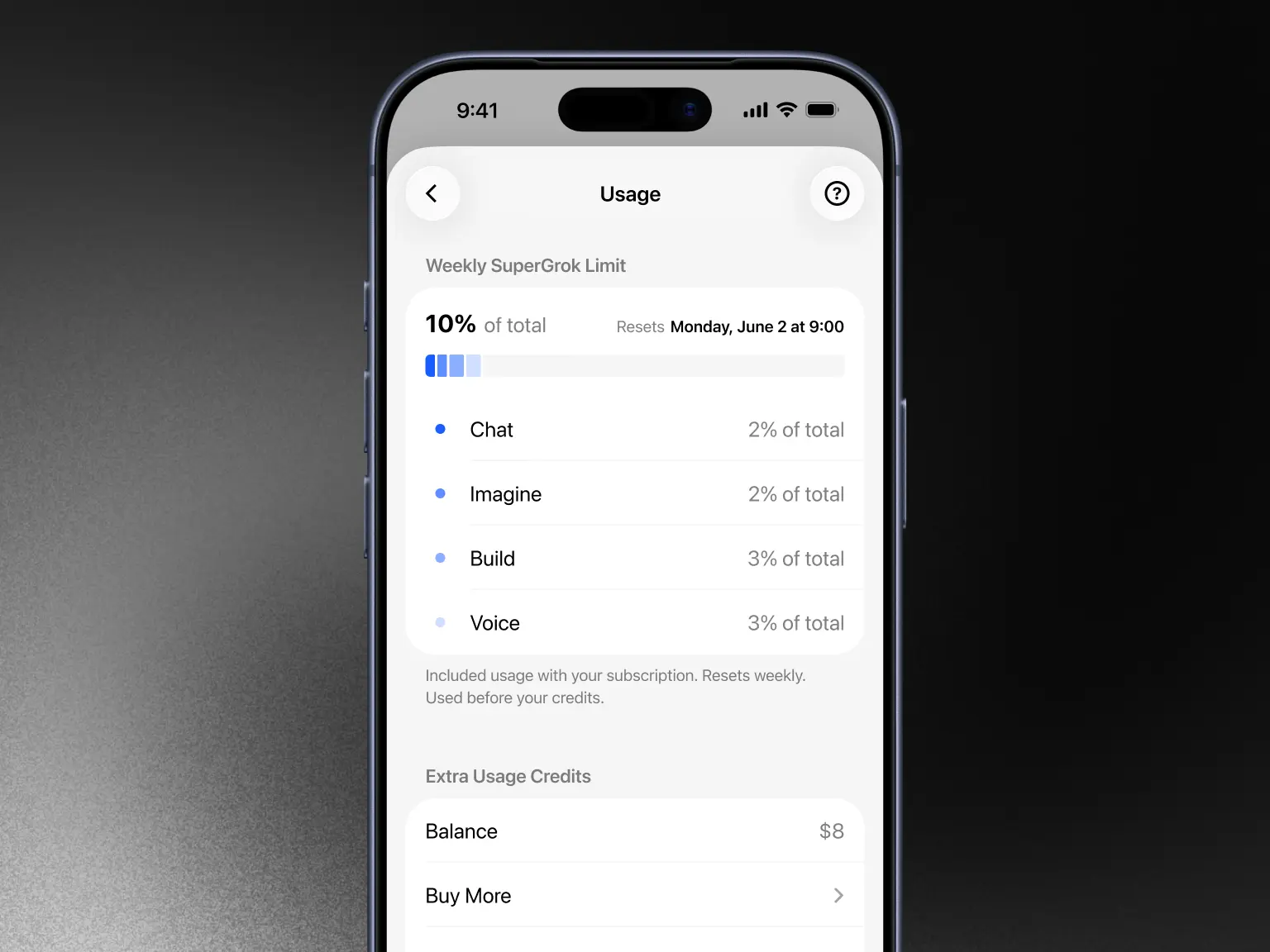
Go to Settings → Usage (available on web and mobile). You'll see:
- A progress bar showing your current usage percentage.
- A percentage breakdown by product (API, Build, Chat, Imagine, Voice).
- Your weekly reset date and time.
- Your Extra Usage Credits balance (if any).
What happens when I reach my weekly limit?
When your weekly usage limit is met, paid features will pause until your weekly limit resets. You will still have access to Grok's free tier limits on Chat and Voice (these are separate from your weekly usage limit and resets on their own schedule). Hitting the weekly usage limit is not a hard stop. You also have the following additional options:
- You can purchase Extra Usage Credits to instantly continue usage.
- You can upgrade to a higher plan for a larger weekly allowance.
- You can turn on Auto Top Up.
How do Extra Usage Credits and top-ups work?
You can purchase Extra Usage Credits to continue using paid features after your weekly included usage is exhausted.
Important! Extra Usage Credits can currently only be purchased on the web. In-app purchases on mobile will be available in the future.
When you buy Extra Usage Credits:
- They are added to your account immediately.
- They are used after your plan's included weekly usage is exhausted.
- Top up credits expire one year after purchase (unless otherwise stated).
- You can buy as little as $5 from the Usage tab on web.
Note: Extra Usage Credits are priced at standard rates, which means the cost per action is higher than the effective rate you get from the included weekly usage in your plan.
What is Auto Top Up?
You can set up automatic top-ups so your account automatically adds credits when your balance gets low. You choose the amount and monthly cap. This setup is an easy way to avoid usage interruptions.
Should I upgrade my plan or buy credits?
Upgrading to a higher plan provides significantly more weekly usage at a lower cost per action compared to repeatedly buying Extra Usage Credits.
On lower tier plans, top ups are convenient for occasional extra usage. If you regularly go beyond your current weekly usage limit, upgrading your plan is likely better value in the long-term.
How do I get the most from my weekly usage?
- Use the product breakdown in the Usage tab to see your activity.
- Set up Auto Top Up for uninterrupted access.
- Consider upgrading to a higher plan if you frequently hit limits since it is better value.
Still have questions?
If something doesn't look right or you need help with top ups, upgrades, or your usage, please contact support through the app or grok.com.
Accounts & Login
How can I link my X account sign-in/subscription to my xAI account?
On Grok Website, go to Settings -> Account. Click on Connect your X Account button. This will take you to X's SSO page to add X account as a sign-in method for SpaceXSI.
SpaceXSI will be able to retrieve your X subscription status and grant relevant benefits after linking.
You can manage your sign-in methods at https://accounts.x.ai.
My subscription isn't active because I signed up with an Apple "Hide My Email" / private relay address.
If you created the subscription using Apple's private relay email, you must sign in with Apple (not with the relay email via Google/email) for it to be recognized. Use the same Apple sign-in you originally subscribed with.
My subscription shows active in the app but I keep getting "activate/upgrade" prompts.
If you're on an active subscription, those prompts shouldn't appear. Restarting the app (or deleting and reinstalling it), logging out, and clearing the cache resolves most of these mismatches. Make sure the app is updated to the latest version, and confirm the subscription is active both in the app and in your app store's Subscriptions list.
How do I change the email I log in with?
Update or add your sign-in email at accounts.x.ai. If your subscription is through Apple, the login is tied to your Apple ID, so manage that email through Apple. If you've lost access to your original address (e.g. a university email after graduation), sign in with a new personal email / Google / X account and link it at accounts.x.ai.
My account was hacked / an attacker changed my email. What can support do?
Support can cancel the subscription on a compromised account. If your identity can't be verified via email (because the attacker changed it), they can delete the account so you can sign up again. Note: compromised usage generally can't be refunded if the purchase location matches your usual location, and a subscription fee that was never actually charged can't be refunded. Contact support immediately and provide your user ID and any details that prove ownership.
What login or app troubleshooting does support recommend first?
Restarting the app (or deleting and reinstalling it), logging out, and clearing the cache resolves most login/activation issues. On the web, trying Chrome/Edge in an incognito window helps isolate browser-specific failures.
How can I delete my account?
Your xAI account can be deleted by following the steps at xAI Accounts. If you are using the same account to access our API, your API access will be removed as well.
You can restore your account within 30 days by logging in again and confirming restoration.
Image & Video Generation (Grok Imagine)
Why do my generated images/videos have a "grok" watermark? Can I remove it?
Generated images and videos include a Grok watermark to indicate that the content was created with AI. There is no setting to remove the watermark. In some jurisdictions, labeling AI-generated content is also legally required. Removing, altering, or obscuring the watermark or other provenance signals is prohibited under our Acceptable Use Policy.
Why did my 720p video come out at 480p?
720p videos automatically fall back to 480p once you hit the 720p cap for your tier.
Products & Models
What is Grok Bot?
Grok Bot gives you durable AI teammates on a persistent cloud computer — messaging, approvals, connectors, and routines. It is not the same as Grok on grok.com or the Grok mobile apps. See Get started with Grok Bot.
Where did Grok Studio go? / I can't access Grok Studio.
Grok Studio is no longer supported. Use Grok Build instead. If you're reaching a "Studio" view through a third-party app that uses your Grok credentials, revoke and change those credentials for safety.
Are Companions available on the web or Android?
No — Companions are available on the iOS app only, and there are no plans to bring them to the web or Android.
What's the correct web address — grok.com or grok.x.ai?
Use grok.com in a standard Chrome/Chromium browser for the web app. (Some users on grok.x.ai or other hosts run into missing features like Projects.)
Files & Data
How do I upload files to Grok?
Grok supports uploading a wide variety of file types directly in chats on the web, iOS, and Android apps — enabling analysis, summarization, data extraction, code processing, image understanding, audio/video handling, and more.
To upload a file:
- In any chat, click or tap the + icon next to the message input.
- Select files from your device (or drag-and-drop on the web).
- You can attach multiple files in a single message.
- Grok processes them and confirms a successful upload before responding.
How many files at once:
- Web: up to ~100 files.
- Android: up to 20 files.
- iOS: multiple files supported.
What file types can I upload to Grok?
Grok handles common documents, data files, code, images, audio, and video. Support is broad but can vary slightly by platform — the web often has wider document support.
Documents & data
- PDF, DOCX, TXT, CSV, XLSX, PPTX
- HTML, XML, JSON, MD (Markdown)
- LaTeX (.tex / .latex), ODT, RTF
- Code files (.py, .cpp, .java, .html, .css)
Images
- JPEG / JPG, PNG, WebP, HEIC, BMP
- GIF and SVG support varies by platform — some uploads succeed, others may fail.
Audio
- MP3, WAV, M4A, OGG, FLAC, AAC
Video
- MP4, MOV
We're actively expanding supported formats.
What are the file size and upload limits?
- Most files (documents, images, code, audio): up to 150 MB per file.
- Conversation context: Grok extracts and processes content intelligently (text from documents, visual reasoning from images and PDFs, and so on). Very long files may be summarized or handled in sections for the best results.
- Limits can vary slightly by platform or subscription. Grok shows a clear error message if a file exceeds a limit.
Tips for best results:
- Use high-resolution images (≥1000×1000 pixels preferred) for detailed visual analysis.
- For large PDFs (over 100 pages), Grok focuses on text and key visuals — reference specific pages by their actual page numbers.
- Break extremely large documents into smaller chunks if needed.
- Mixed uploads (e.g. TXT + PDF + PPTX + images + code) work well together.
What can Grok do with uploaded files?
Grok excels at:
- Synthesis: combine insights from multiple files, compare and contrast documents, analyze spreadsheets, or generate new content.
- Transformation: summarize complex papers, rewrite in different styles, turn presentations into outlines, or simplify technical docs.
- Extraction: pull specific data, quotes, metadata, tables, or sections from PDFs and spreadsheets.
- Analysis: understand images and charts, debug or run code, transcribe and interpret audio/video, or visualize data from CSVs and XLSXs.
- Multimodal reasoning: discuss visuals inside PDFs, describe photos, or reason across text, images, and code together.
Just ask naturally — for example: "Summarize this PDF and extract the key tables," "What trends are in this CSV?," "Describe the image and fix the code in the attached file," or "Compare these two DOCX files."
What are the limitations and best practices for uploaded files?
- Grok extracts text from most documents, but embedded images inside non-PDF files may not be processed visually.
- Some audio and video files upload successfully but have variable transcription quality.
- Deleted chats and files are removed from systems within standard retention windows unless we are required to retain them longer for legal, compliance, or safety purposes.
How do I troubleshoot file upload issues?
- "File type not supported" — convert to a supported format (e.g. PDF or TXT), or try on a different platform.
- Upload fails / "Tap to retry" — check the file size; try a smaller version or a different format.
- "An attachment couldn't be loaded" — this is often platform-specific (e.g. certain audio/video). Switch platforms or convert the file.
- Slow performance with large or mixed uploads — Grok can handle them, but very complex requests may work better if you break them into follow-up questions.
- Still stuck? Ask for help in Help.
How do I free up storage / delete files and assets?
On the web, go to grok.com/files to delete content and free up space. For more ways to control your data, go to Profile → Settings → Data Controls.
Team Management
What are teams?
Teams are the level at which SpaceXSI tracks API usage, processes billing, and issues invoices.
- If you’re the team creator and don’t need a new team, you can rename your Personal Team and add members instead of creating a new one.
- Each team has roles:
- Admin: Can modify team name, billing details, and manage members.
- Member: Cannot make these changes.
- The team creator is automatically an Admin.
Which team am I on?
When you sign up for SpaceXSI, you’re automatically assigned to a Personal Team, which you can view in the top bar of xAI Console.

How can I manage teams and team members?
Create a Team
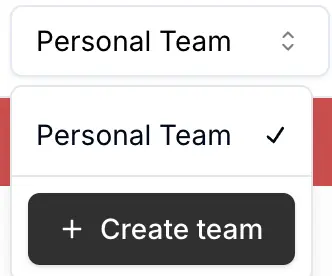
- Click the dropdown menu in the xAI Console.
- Select + Create Team.
- Follow the on-screen instructions. You can edit these details later.
Rename or Describe a Team
Admins can update the team name and description on the Settings page.
Manage Team Members
Admins can add or remove members by email on the Users page.
- Assign members as Admin or Member.
- If a user is removed, their API keys remain with the team.
Delete a Team
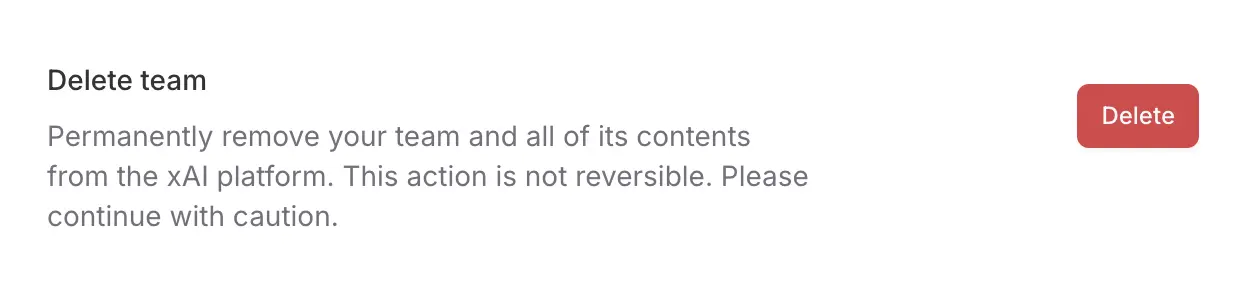
Deleting a team removes its prepaid credits.
To permanently delete a team:
- Go to the Settings page.
- Follow the instructions under Delete Team.
How to automatically add users to team with my organization’s email domain?
Admins can enable automatic team joining for users with a shared email domain:
- Go to the Settings page.
- Add the domain under Verified Domains.
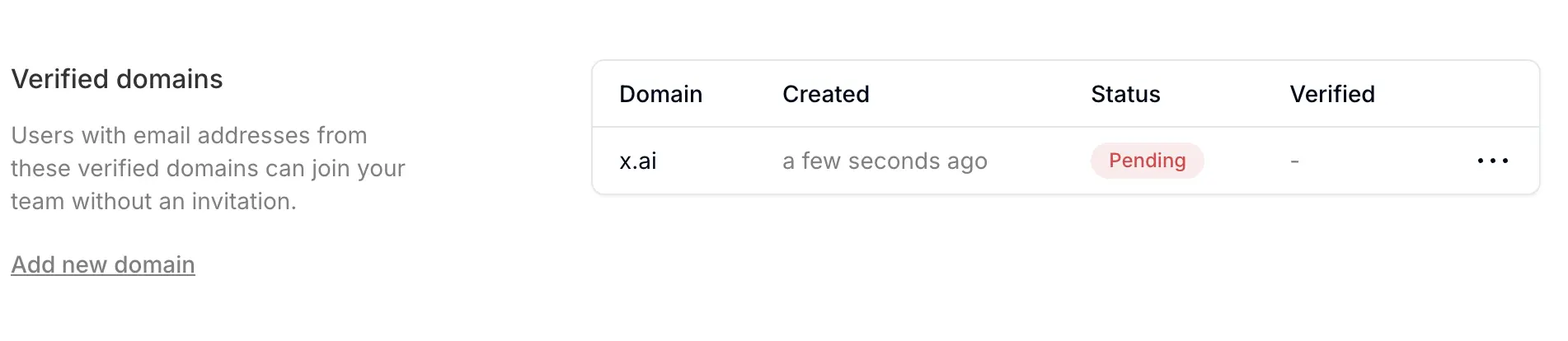
- Add a
domain-verificationkey to your domain’s DNS TXT record to verify ownership.
Users signing up with a verified domain email will automatically join the team.
Getting Help
How do I report a bug or reach a human?
Use the Report an issue feature in the product (or reply to your receipt email for billing matters), and include your account email, the platform (Web / iOS / Android), your browser/OS, the invoice/receipt number for billing issues, and a screenshot or conversation share link. Reported bugs are shared with the engineering team; there's no guaranteed timeline, but fixes often ship in updates released every few days, so keep your app/browser updated.
I have issues using X, can I reach out to SpaceXSI for help?
While SpaceXSI provides the Grok in X service on X.com and X apps, it does not have operational oversight of X's service. You can contact X via their Help Center or message @premium on X.
Last updated: October 10, 2026