Grok Business / Enterprise
Connector Management
On Grok Business and Enterprise plans, a team admin must add a connector in the cloud console before team members can connect and use it. This gives your organization control over which external services Grok can access.
Access the connectors page by logging into console.x.ai, selecting your team, and navigating to Grok Business → Connectors. Actions like adding or removing connectors require team management permissions—see the Permissions section for details.
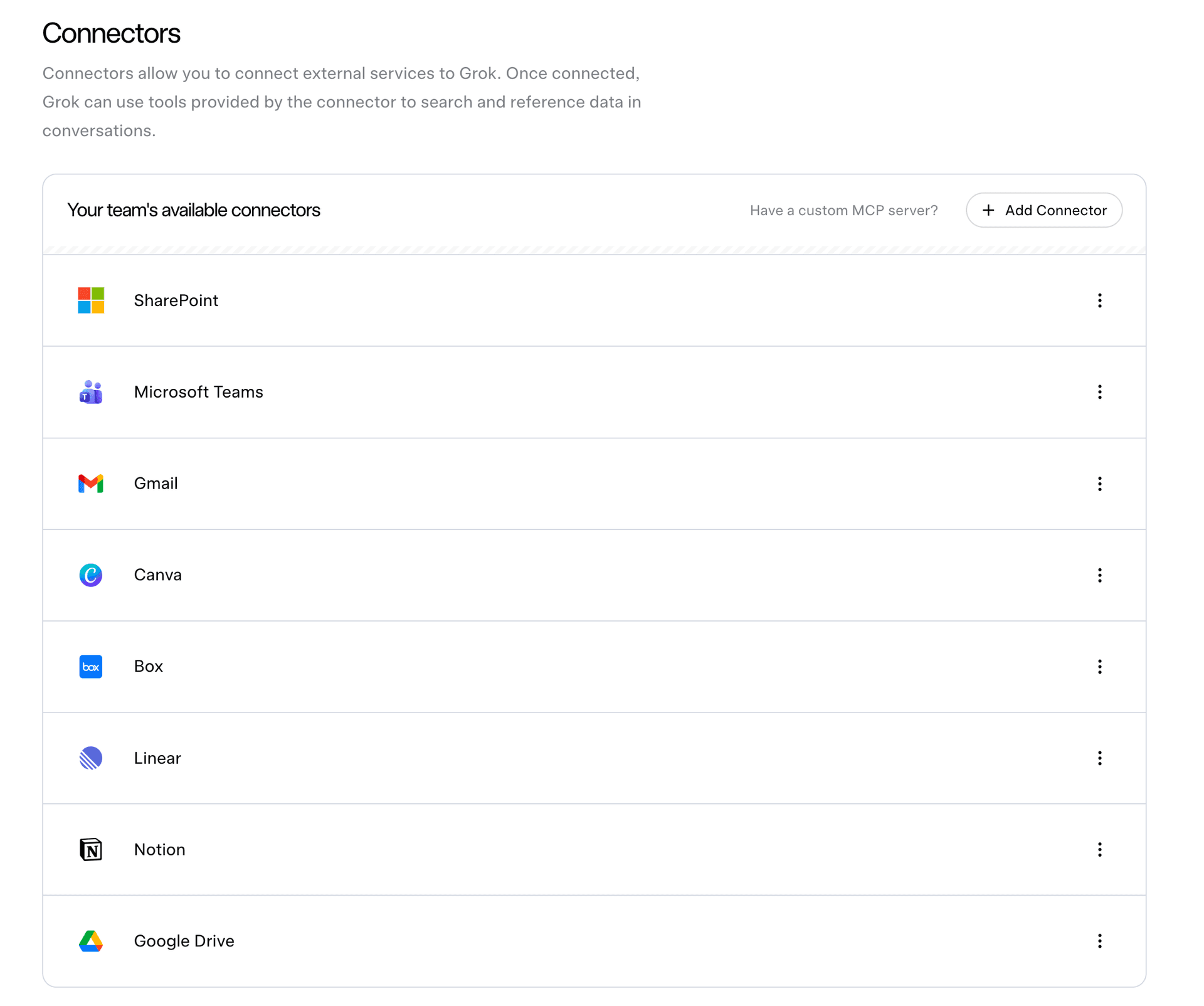
Adding connectors
Team admins can provision connectors from the catalog or add a custom MCP server.
To add a connector from the catalog:
- On the connectors page, click + Add Connector.
- Select the service you want to enable for your team.
- Complete any required setup steps—some connectors need additional configuration, such as admin consent for Microsoft services. See the connector-specific docs linked below for details.
Once added, the connector appears in your team's available connectors list. Team members can then connect their own accounts on grok.com/connectors.
To add a custom MCP server:
- On the connectors page, click + Add Connector.
- Select Other and enter your MCP server URL.
- Complete any required authentication.
See Custom MCP Tunneling if your server runs on a local machine.
Managing connectors
After a connector is provisioned, admins can manage it from the connectors page:
- Configure — Open a connector's settings to adjust access controls, allowed sites, or other service-specific options.
- Remove — Delete a connector from your team. Team members will no longer be able to connect or use it, and any indexed data associated with the connector may be removed.
Some connectors require additional admin setup beyond the initial add step. Refer to the dedicated guides for service-specific instructions:
| Connector | Setup guide |
|---|---|
| SharePoint | See details |
| OneDrive | See details |
| Salesforce | See details |
For a full list of available connectors, see the Connectors overview.
Permissions
Adding and removing connectors requires Team Read-Write permissions. This is typically granted to team admins.
If you lack permissions, contact your team admin to provision the connectors your organization needs.
Need Help? For white-glove support, Enterprise upgrades, or connector setup assistance, contact xAI sales at x.ai/grok/business/enquire.
Last updated: June 14, 2026