Guides
Using Collections in Console
This guide walks you through managing collections using the xAI Console interface.
Creating a new collection
Navigate to the Collections tab in the xAI Console. Make sure you are in the correct team.
Click on "Create new collection" to create a new collection.

You can choose to enable generate embeddings on document upload or not. We recommend leaving the generate embeddings setting to on.
Viewing and editing collection configuration
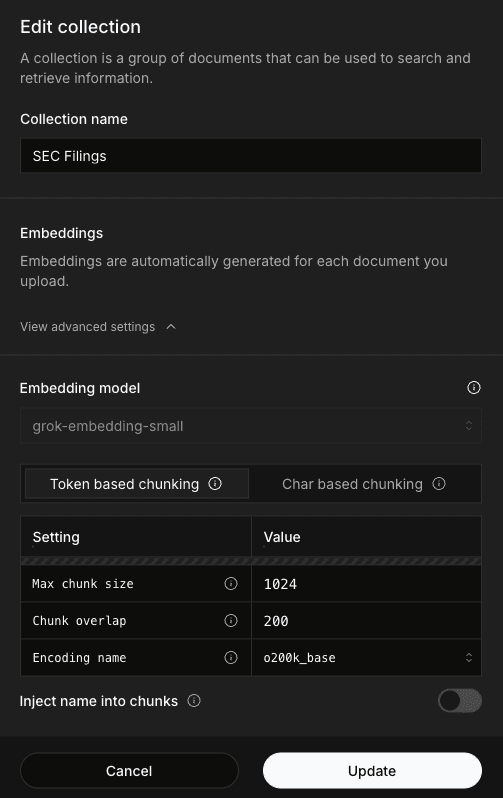
You can view and edit the Collection's configuration by clicking on Edit Collection.
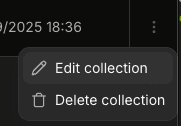
This opens up the following modal where you can view the configuration and make changes.
Adding a document to the collection
Once you have created the new collection, you can click on it in the collections table to view the documents included in the collection.
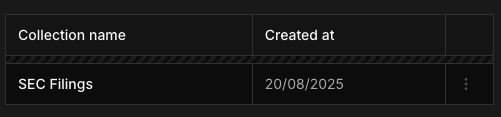
Click on "Upload document" to upload a new document.

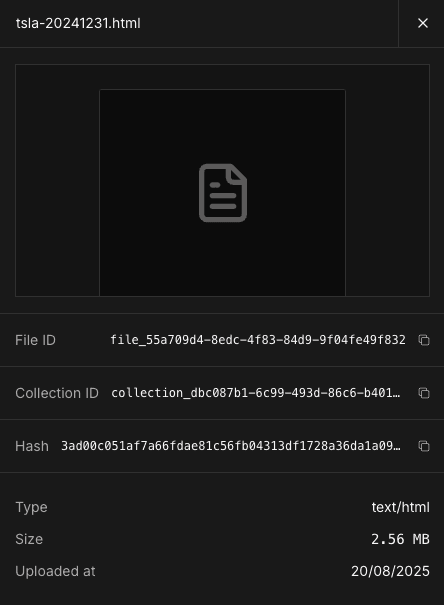
Once the upload has completed, each document is given a File ID. You can view the File ID, Collection ID and hash of the document by clicking on the document in the documents table.

Deleting documents and collections
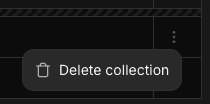
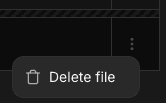
You can delete documents and collections by clicking on the more button on the right side of the collections or documents table.
Did you find this page helpful?